Please note - ActiveSync® requires the latest build of FirstClass Synchronization Services to be running.
|
To configure ActiveSync on your iPhone™ please follow the instructions below:
|
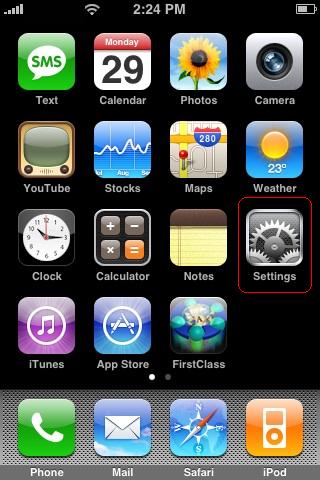
1. Tap Settings
|
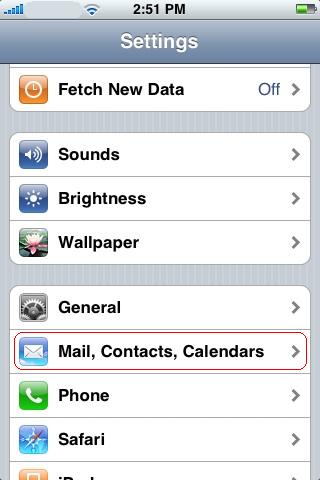
2. Tap Mail, Contacts, Calendars
|
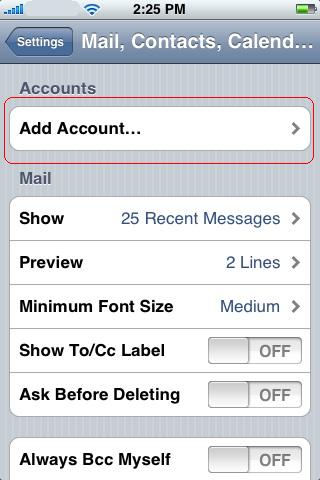
3. Tap Add Account
|
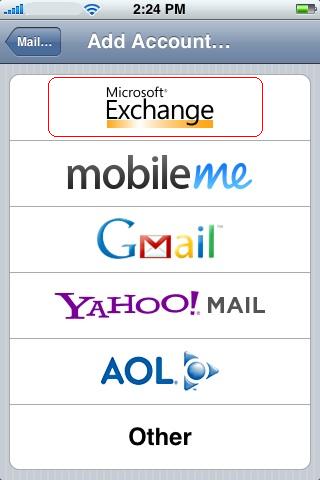
4. Tap Microsoft Exchange
|
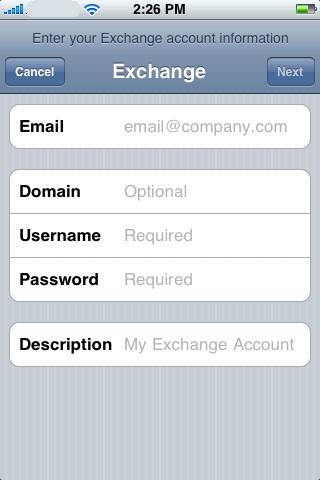
5. Enter your Email address, and the Username and Password of your FirstClass account. Domain should remain blank. Tap Next.
|
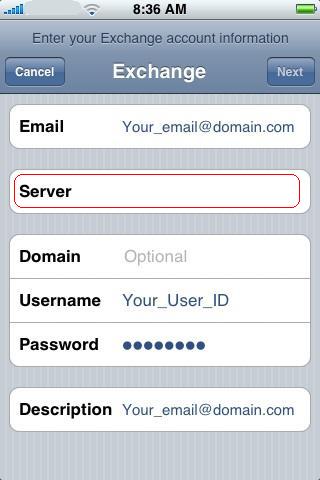
6. Enter the Server address provided to you by your help desk / FirstClass Administrator. Tap Next.
|
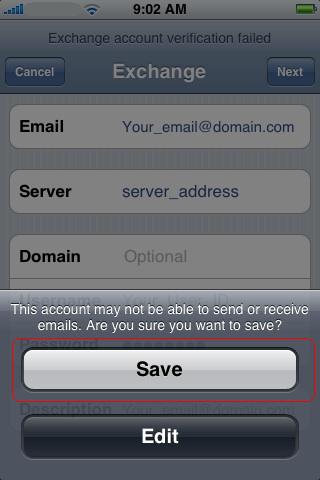
7. You will see the following error. Ignore it and click Save. |
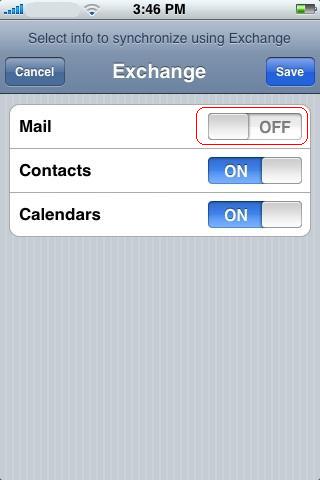
8. Turn off the Mail portion of Active Sync. You can also disable Contacts or Calendars if you don't wish to sync one of them. Click Save.
|
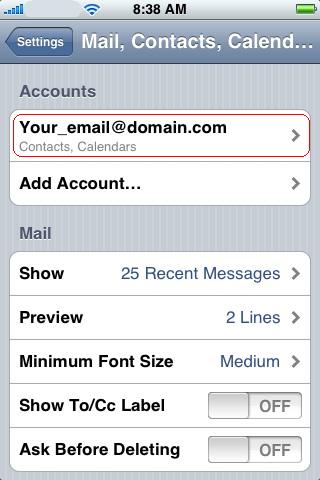
9. Tap your newly configured account.
|
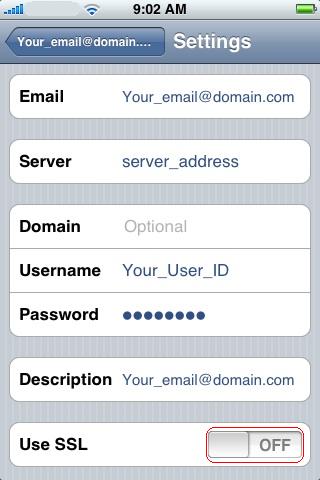
10. Set Use SSL to OFF.
|
11. Go back to your desktop and tap Settings again.
|
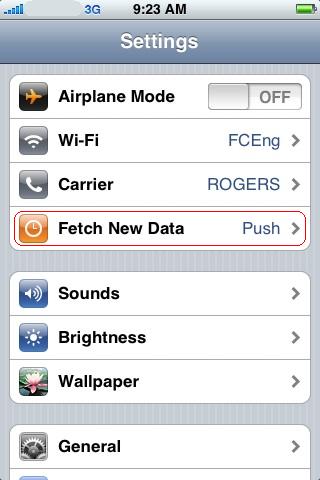
12. Tap Fetch New Data.
|
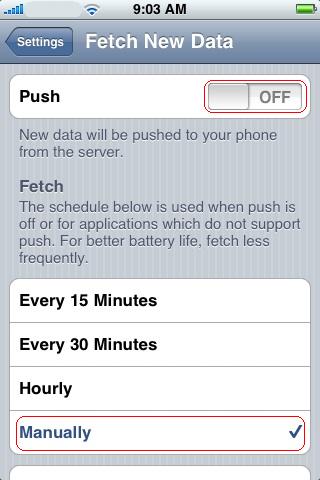
13. Set Push to OFF, and the Fetch schedule to Manually.
|
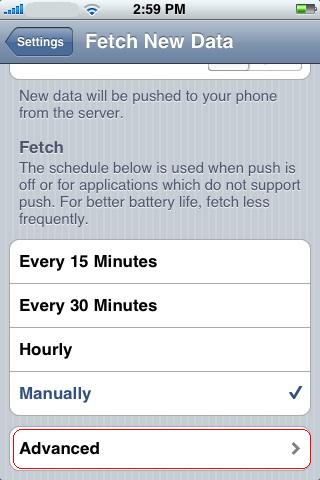
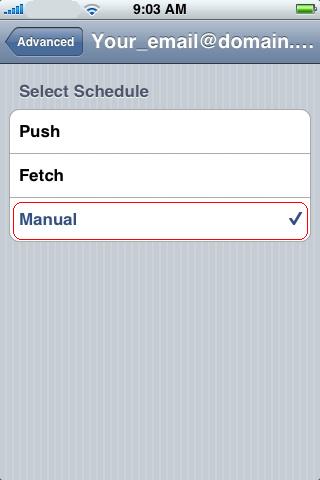
14. Tap Advanced.
|
15. Set this to Manual.
|
You're done! Your contacts and calendar will be synched whenever you access those containers on your iPhone. |
8. Turn off the Mail portion of Active Sync. You can also disable Contacts or Calendars if you don't wish to sync one of them. Click Save.
9. Tap your newly configured account.
10. Set Use SSL to OFF.
11. Go back to your desktop and tap Settings again.
12. Tap Fetch New Data.
13. Set Push to OFF, and the Fetch schedule to Manually.
14. Tap Advanced.
15. Set this to Manual.
Congratulations, you're done! Your contacts and calendar will be synched whenever you access those containers on your iPhone.
| 







 Product Overview
 Collaborative Suite